Get SubPRO on your phone
Choose your device and we'll show you how to get SubPRO straight to your phone.
For iPhone & iPad
SubPRO is available as a native app on the App Store. Download and installation takes less than a minute.
Requires iOS 14 or later. Free, no ads, no in-app purchases.

For Android phones
SubPRO runs on Android as a PWA installed directly from Chrome. Follow the short guide below, it takes under a minute.
Why isn't it on Google Play?
We don't currently offer a Google Play app. The PWA version is fully featured. It works like a native app including offline mode, with no store download.
- 1
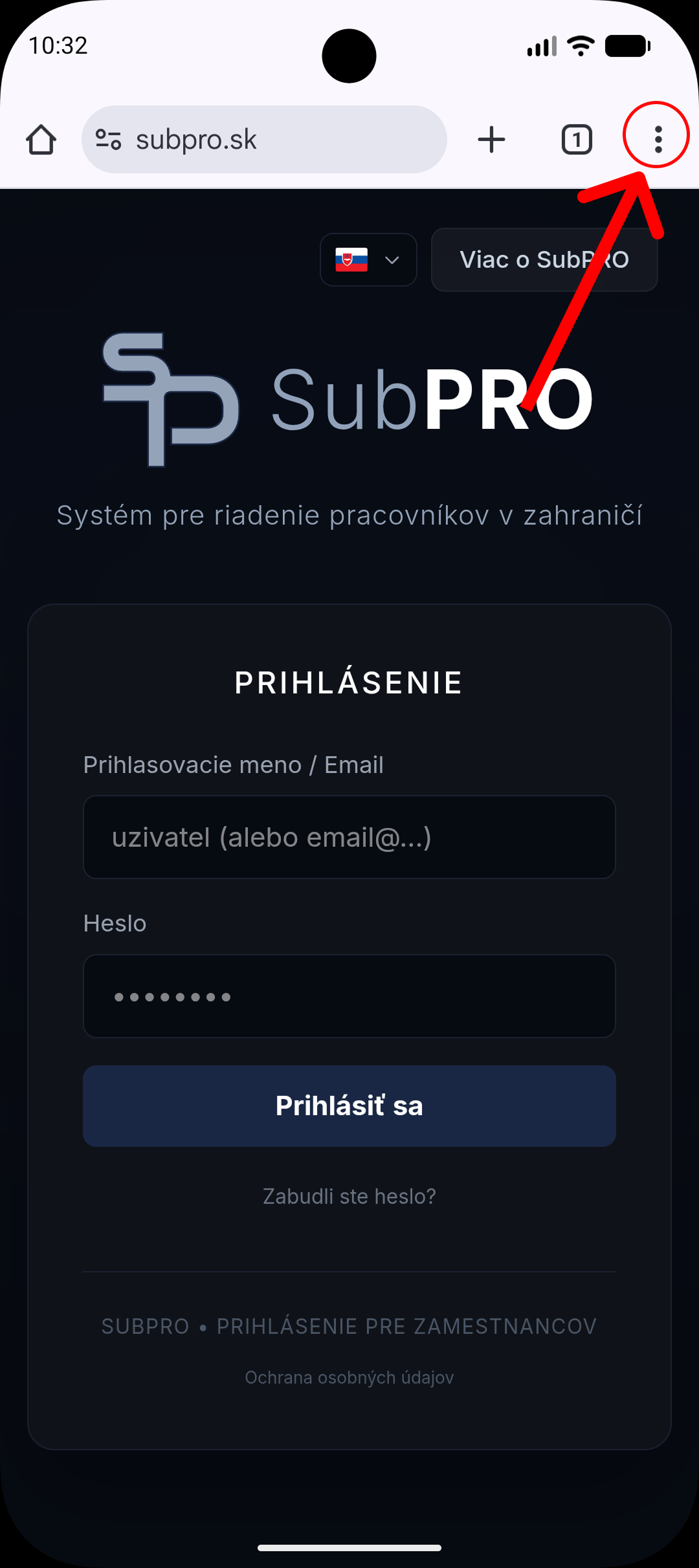
Open SubPRO in Chrome
On Android, launch the Chrome app and enter the address app.subpro.sk. You'll see the login page. The arrow on the screenshot shows where the menu is (three dots in the top-right corner).
- 2
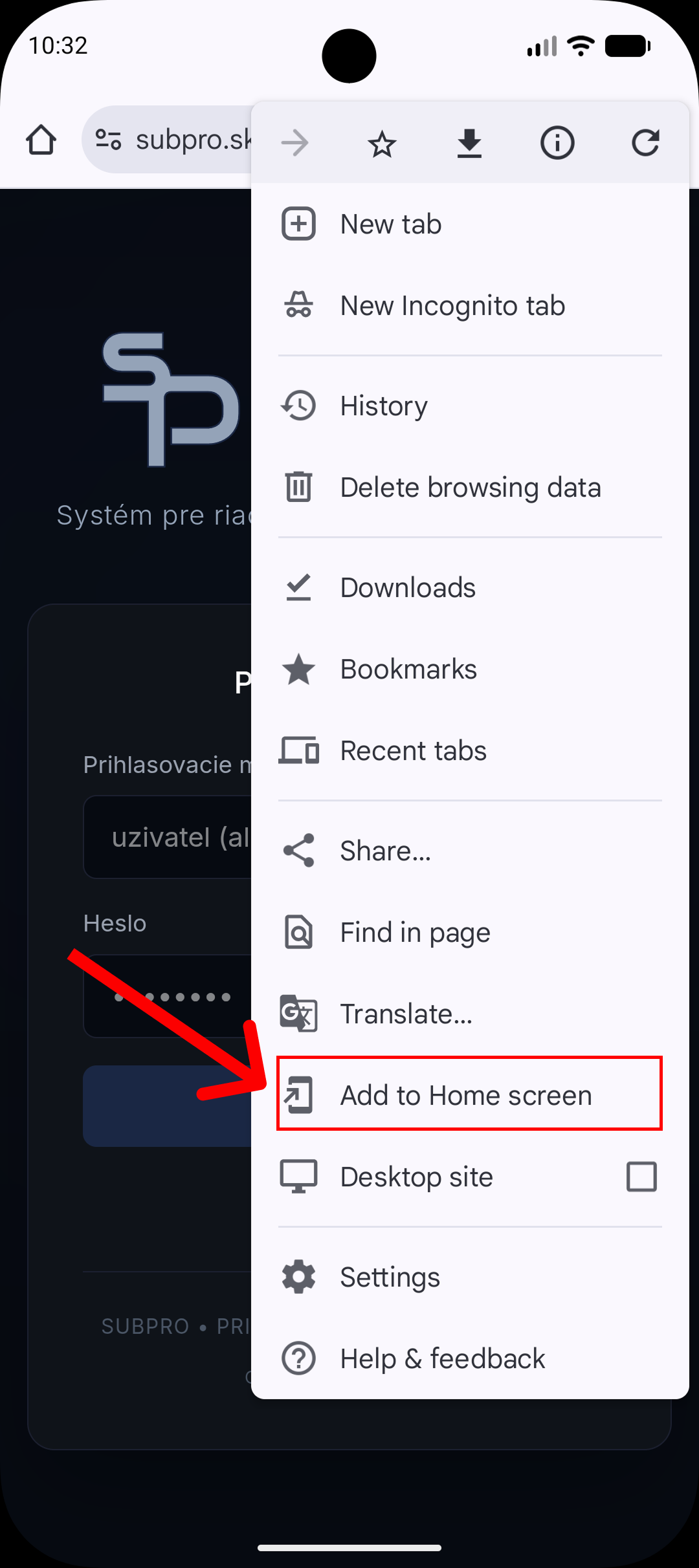
Open the menu and choose "Add to Home screen"
Tap the three dots in the top-right corner. In the menu you'll find "Add to Home screen" (or "Install app" on newer Chrome versions). Tap it.
- 3
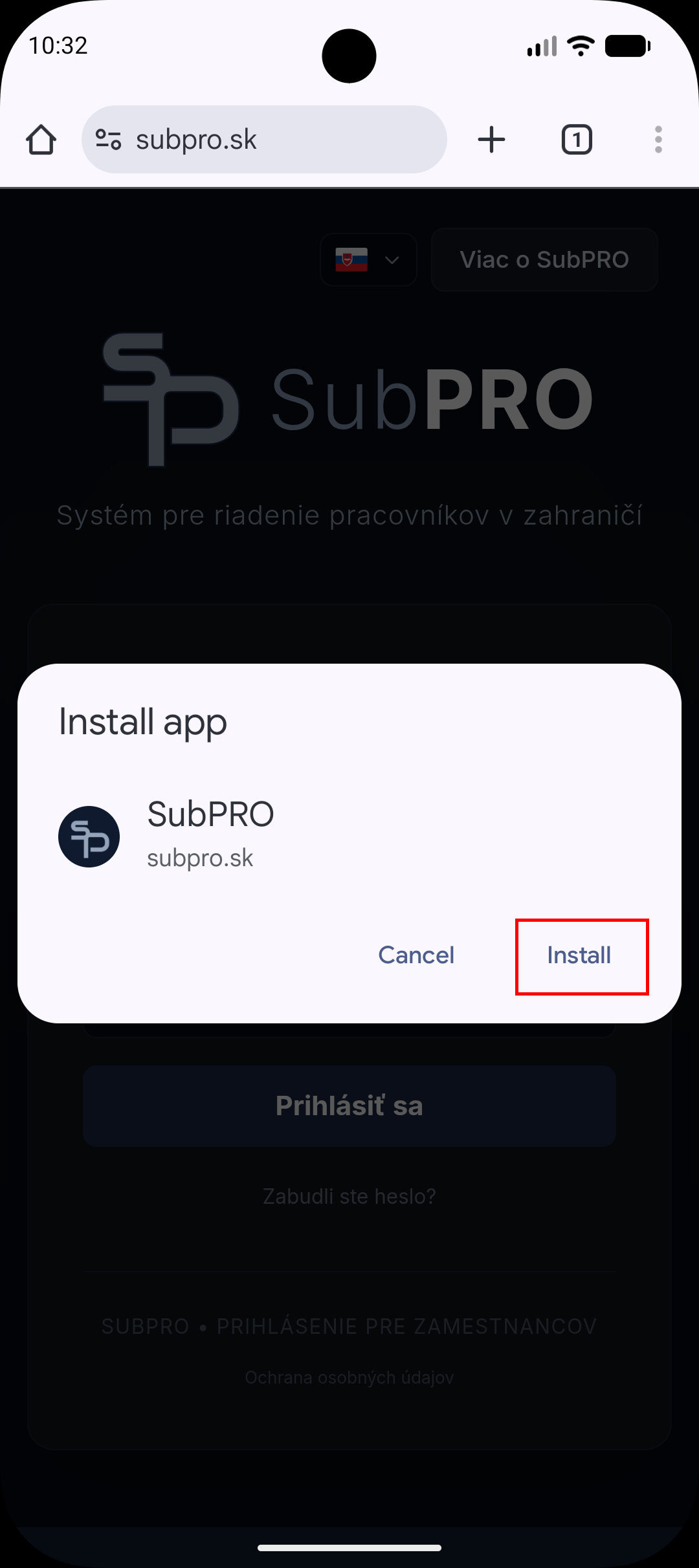
Confirm in the "Install app" dialog
If Chrome shows an "Install app" dialog with an Install button, tap it. You'll get a full PWA install with no Chrome badge on the icon.
- 4
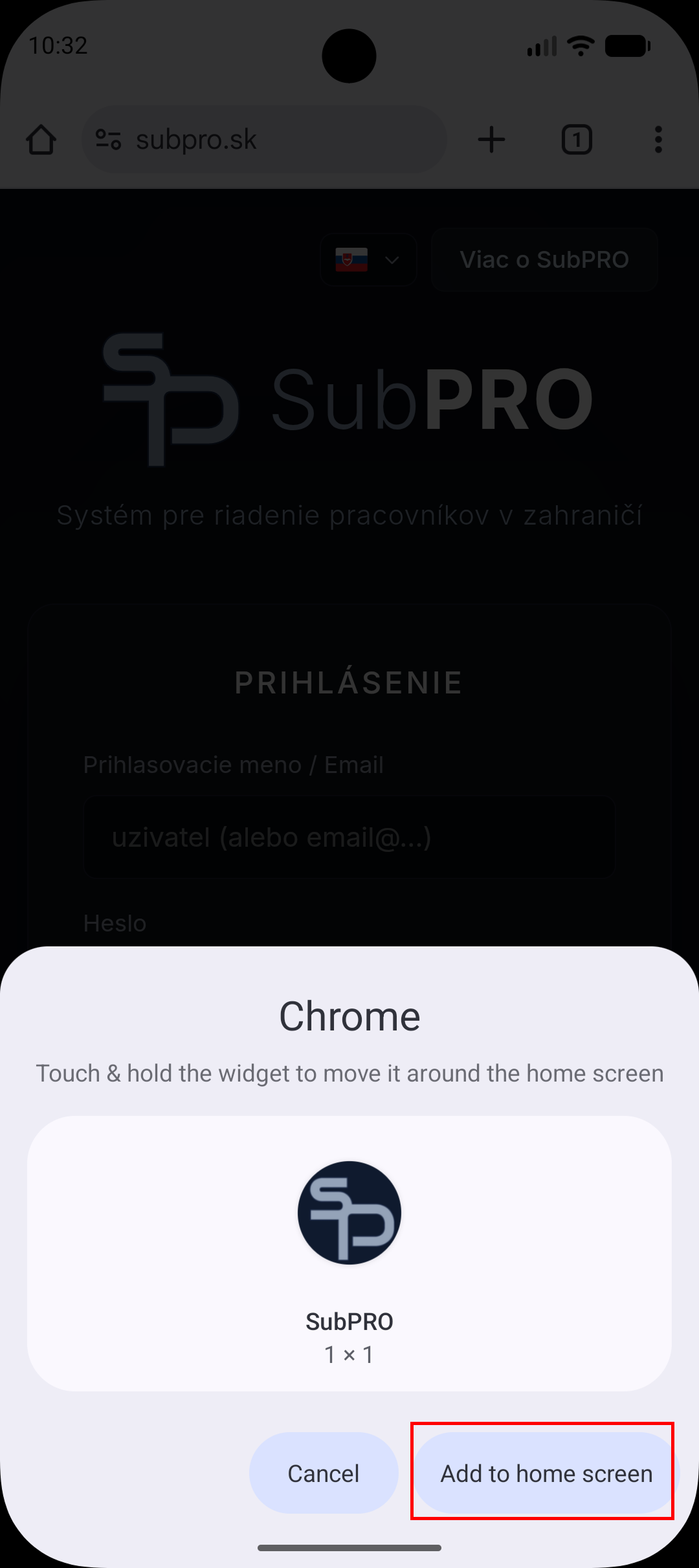
Or confirm "Add to home screen"
If you instead see an "Add to home screen" dialog with a small 1×1 preview, tap the Add to home screen button. Both options put SubPRO on your home screen.
- 5
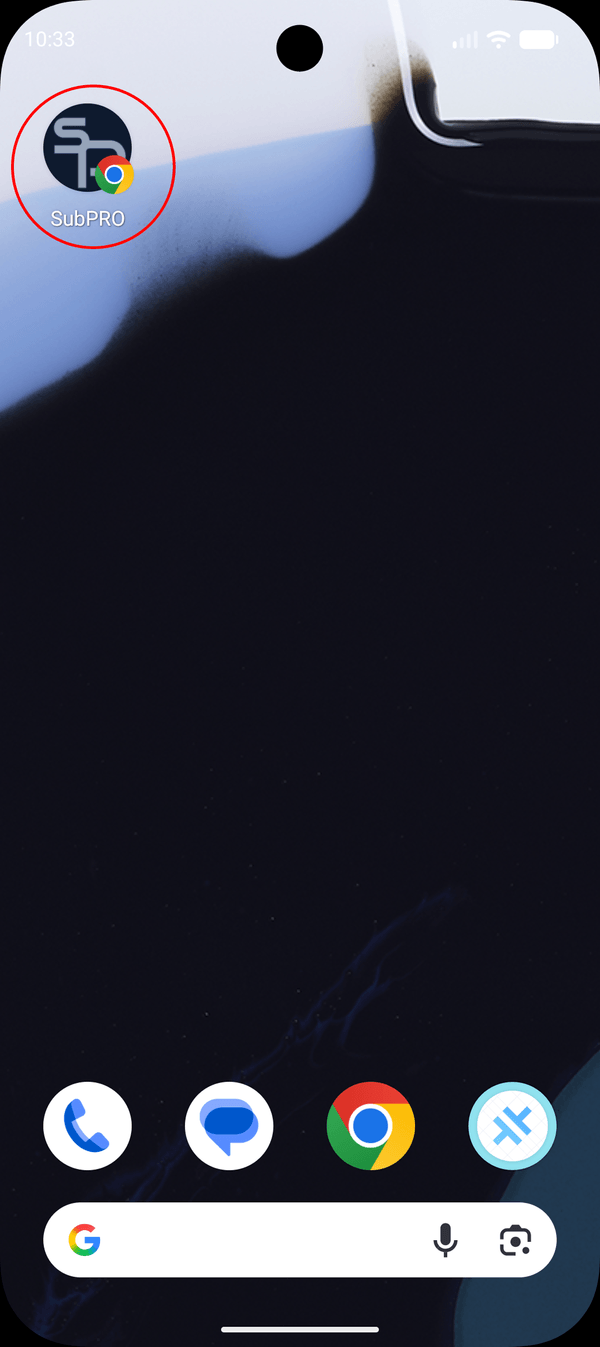
Done, SubPRO is on your home screen
You'll find the SubPRO icon on your phone's home screen. Tapping it launches the app full-screen. It behaves just like a native app and works offline too.
The next 2 steps are alternatives
Chrome will show you one of two dialogs (not both). Do whichever one you see, the result is the same.
Need help installing?
Drop us a line and we'll help you install it by email or walk you through it on the phone.
Send email